How to use Sick & Injured — FAQ
What this tool is for, and how to run a Sick & Injured shift with it start to finish. Tap a question to expand.
Step 1 — generating the Vet Reminder Report in ShelterBuddy
- Log in to ShelterBuddy → Reports → Vets → Vet Reminder Report
- Date: today's date
- Region: Cranbourne
- Type of animals: All
- Tick Only include animals that are in care
- Order by: Shelter / Kennel
- Click Generate
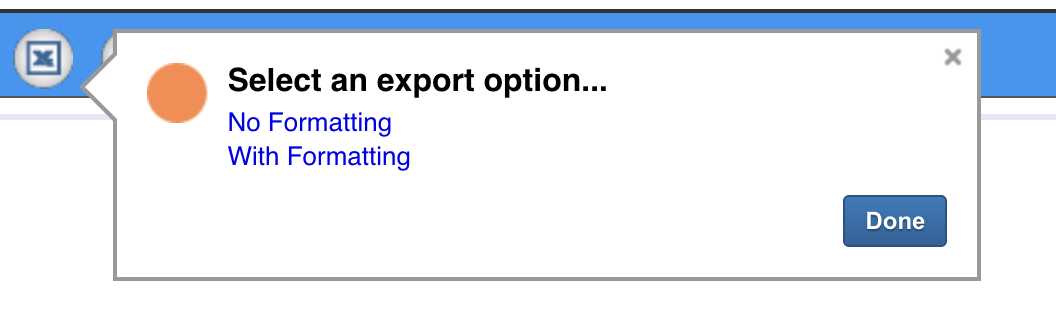
- On the generated report, click the Excel icon (top left), then choose With Formatting and click Done to download it
Step 2 — bringing it into the tool
On the Shift List tab, upload that file where it says to upload the Vet Reminder Report. Every animal on it shows up with its history already filled in from the report.
What's the AA Vet Flag Log, and where does it come from?
Through the day, an admission Animal Attendant filters out which animals need a vet look and keeps that list current. You'll get it at 12pm each day, either printed or as an Excel file. Upload the Excel version on the same Shift List tab where it says "Upload AA Vet Flag Log" — it automatically drops the flagged problem into that animal's History, and also shows you the correct medical note format expected of every LDH shelter veterinarian.
Entering notes and treatment
Work through each animal's history/assessment/plan as normal. If you're recording a medication already being given (something already hand-charted at the cage), just type it into Treatment — no need to register anything for that. If it's a genuinely new medication that needs its own printable 14-day chart, click + Register medication chart under Treatment — it parses what you've typed, lets you check/correct the drug, dose, frequency, route and days before saving, then adds the confirmed line back into Treatment for you.
Registering to Word & Excel, and re-registering after edits
Once you're done with an animal, press Register to Word & Excel to compile it into the shift's export. If you come back later and change your notes, press Refresh on that note first, then register it to Word & Excel again — otherwise the export still holds the old version.
What happens to a registered medication chart?
Every chart registered today — from this tool, Processing, or Surgery — collects in one place. Open Medication Charts from the Shift Tools hub any time during the day to see how many are ready, select the ones you want, and export them as one Excel workbook (a real, printable 14-day sheet per animal). Ask a nurse or the admission AA to print these and collect the medications — print on the Cranadopt printer, drawer 2 (yellow paper).
When should I export?
Export your notes at 12pm and 4pm each day. That gives the admission AA enough time to enter your notes and update statuses in ShelterMate, and gives nurses time to collect and give medications before end of shift. Through the day, the Shift List tab shows a running completed/incomplete count so you can see what's left.